
Build and adjust schedules visually
Change task dates and durations directly on the timeline. Organize work into nested groups, tasks, and milestones, then expand the detail or collapse groups for a project overview.

Gantt scheduling · QA Assistant Studio MAX
Bring tasks, milestones, owners, and dependencies into one visual schedule. With QA Assistant Studio MAX, adjust plans, track progress, and see which quality tasks need attention next.
Gantt chart capabilities
Give quality and engineering teams a clear view of the work ahead, the people responsible, and the progress behind each date.
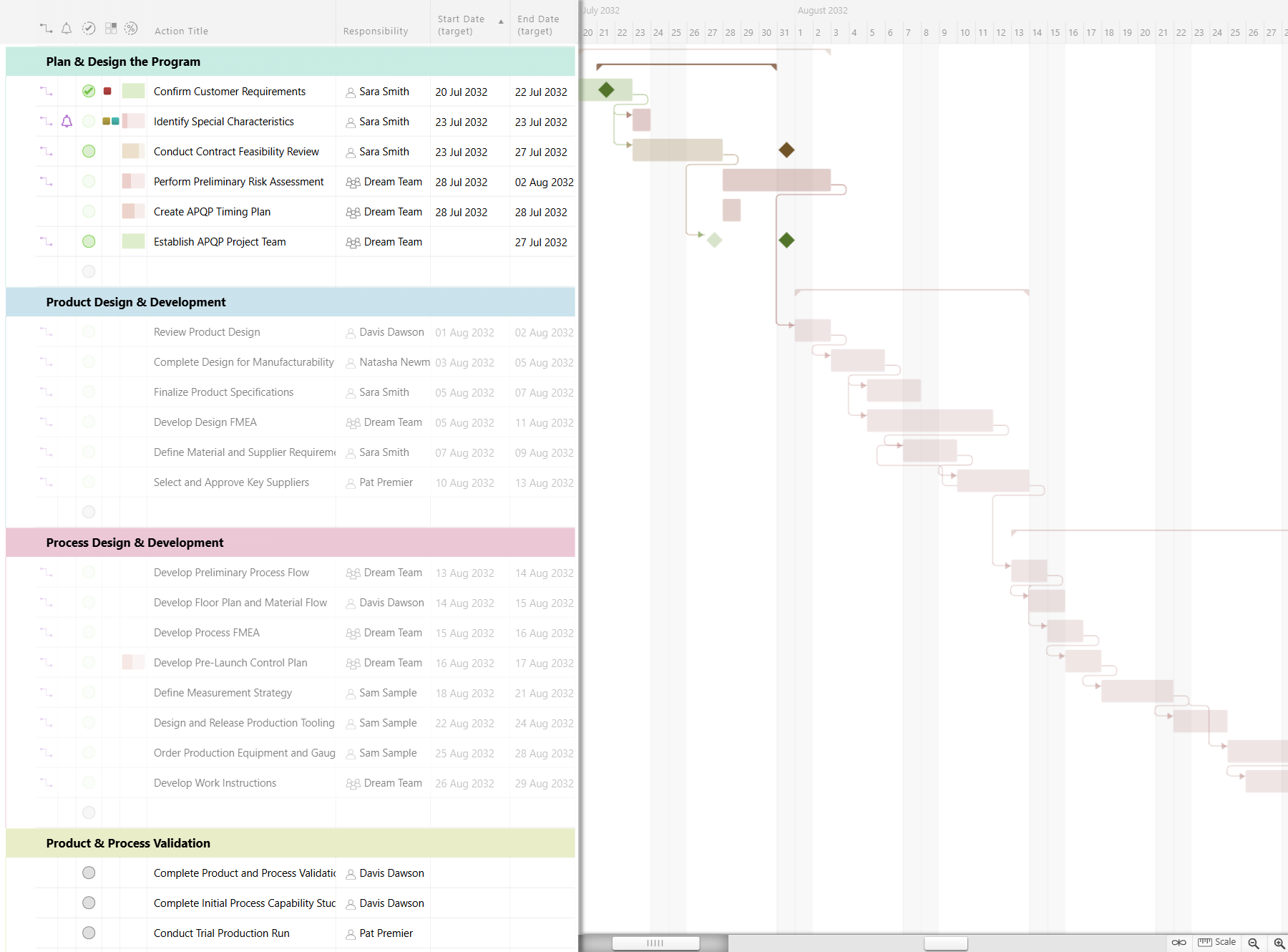
Change task dates and durations directly on the timeline. Organize work into nested groups, tasks, and milestones, then expand the detail or collapse groups for a project overview.

Link predecessor and successor tasks with four dependency types and configurable lag. Use automatic scheduling to adjust dependent dates as plans change, or choose manual scheduling for editable tasks.

Review planned and actual timelines together, overlay schedule bars, and display percentage complete. See where execution matches the plan and where follow-up is needed.

Use the project health dashboard to review overdue, blocked, and upcoming work. Spot missing owners and target dates, and check for invalid dates or scheduling inconsistencies before the next review.

See how task assignments are distributed across responsibilities and identify overdue work by owner. Give project reviews a clear starting point for accountability and follow-up.

Review completion projections based on task progress, target dates, and dependencies. Use the outlook to guide schedule discussions as the project develops.
From project plan to daily progress
Move from the project overview to the task detail you need for planning, updates, and team reviews.
Break the project into phases, task groups, and milestones. Assign responsibilities, set target dates, and connect the tasks that depend on one another.
Show the task table, Gantt chart, or both. Move from detailed daily planning to multiyear timelines, with colors by group, status, category, or completion.
Filter tasks by status and category, and choose whether to include blocked tasks in your view. Use progress displays and today markers to keep the review focused.
Reorganize task groups, copy and paste information, and undo or redo supported edits. Review the schedule alongside related quality documents in Project Assistant.
Shared schedules and project reviews
Share your Gantt chart so quality and engineering teams can review task owners, dates, and progress together. Bring supporting documents and schedule changes into the discussion to agree on what needs attention next.
Planning, progress, and teamwork
Use Gantt charts to organize project phases, tasks, milestones, responsibilities, and dependencies. Quality and engineering teams can plan project work, track quality actions, and compare planned and actual progress. In Project Assistant, schedules sit alongside related APQP documents and project information.
Yes. For editable tasks, you can change dates and durations on the timeline and use manual or automatic scheduling. Four dependency types and configurable lag connect predecessor and successor tasks. Automatic scheduling can adjust dependent dates when planned dates change. This helps you review the effect of a timing change and keep connected tasks aligned as the plan evolves.
Compare planned and actual dates and timelines, overlay schedule bars, and display percentage complete. Status and category filters, today markers, and configurable colors help you focus on the work that needs attention.
The dashboard brings together overdue, blocked, and upcoming work, missing owners and target dates, and planned versus actual progress. Task-assignment views show how work is distributed by responsibility. Completion projections use progress, target dates, and dependencies to indicate where the schedule is heading.
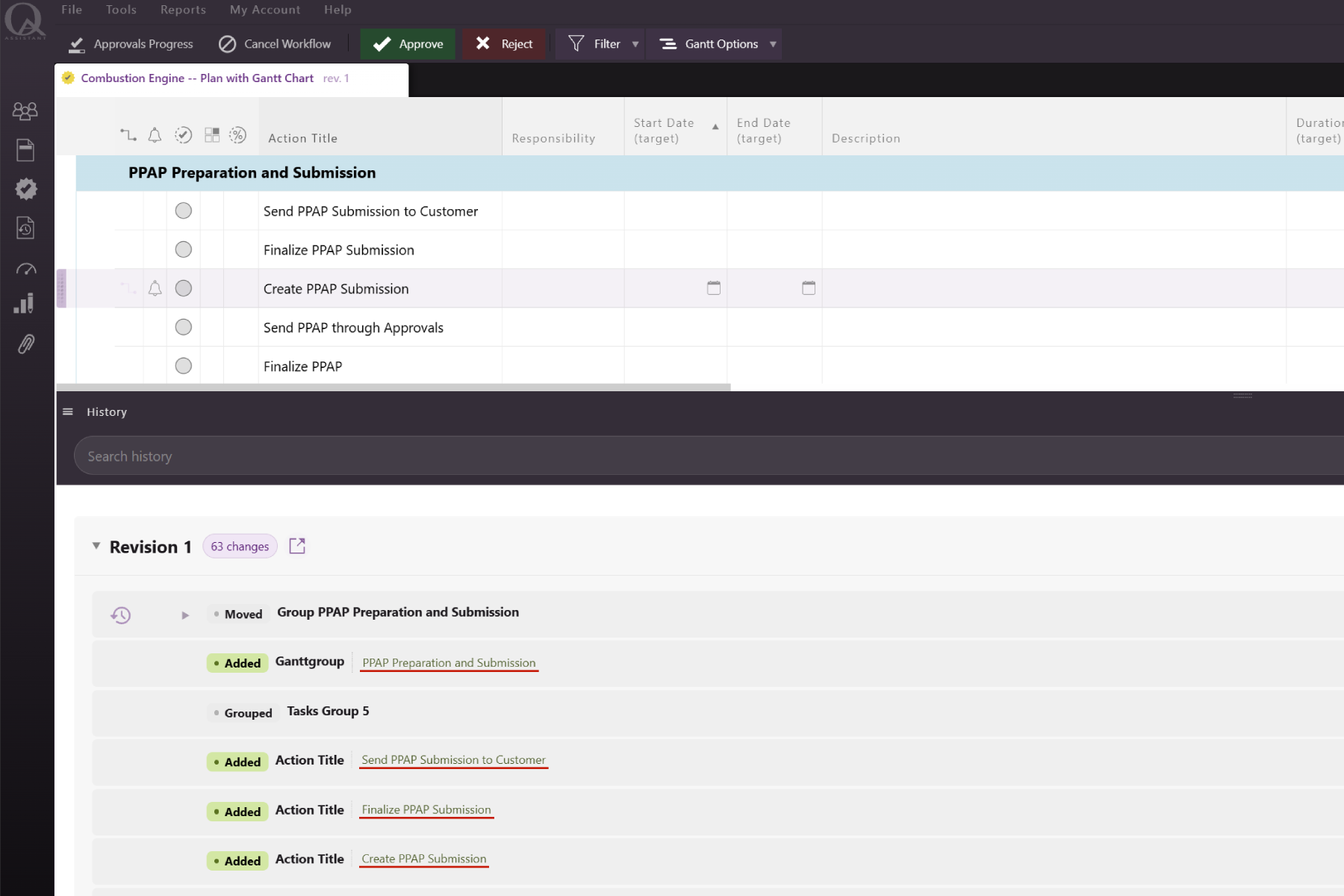
Yes. Share the Gantt schedule so the team can review task ownership, timing, and progress from a common plan. Keep reference documents close to the schedule to give reviewers the context behind the work. When the plan changes, revision history and approval workflows help the team track changes and review the updated schedule before finalizing it.
Explore visual scheduling, task ownership, dependencies, and progress tracking in QA Assistant Studio MAX. Start a free trial or take a product tour.